Trim Video Online, Then Add Subtitles
Cut your clip with any free browser trimmer, then paste the transcript here for subtitles timed to the exact word.
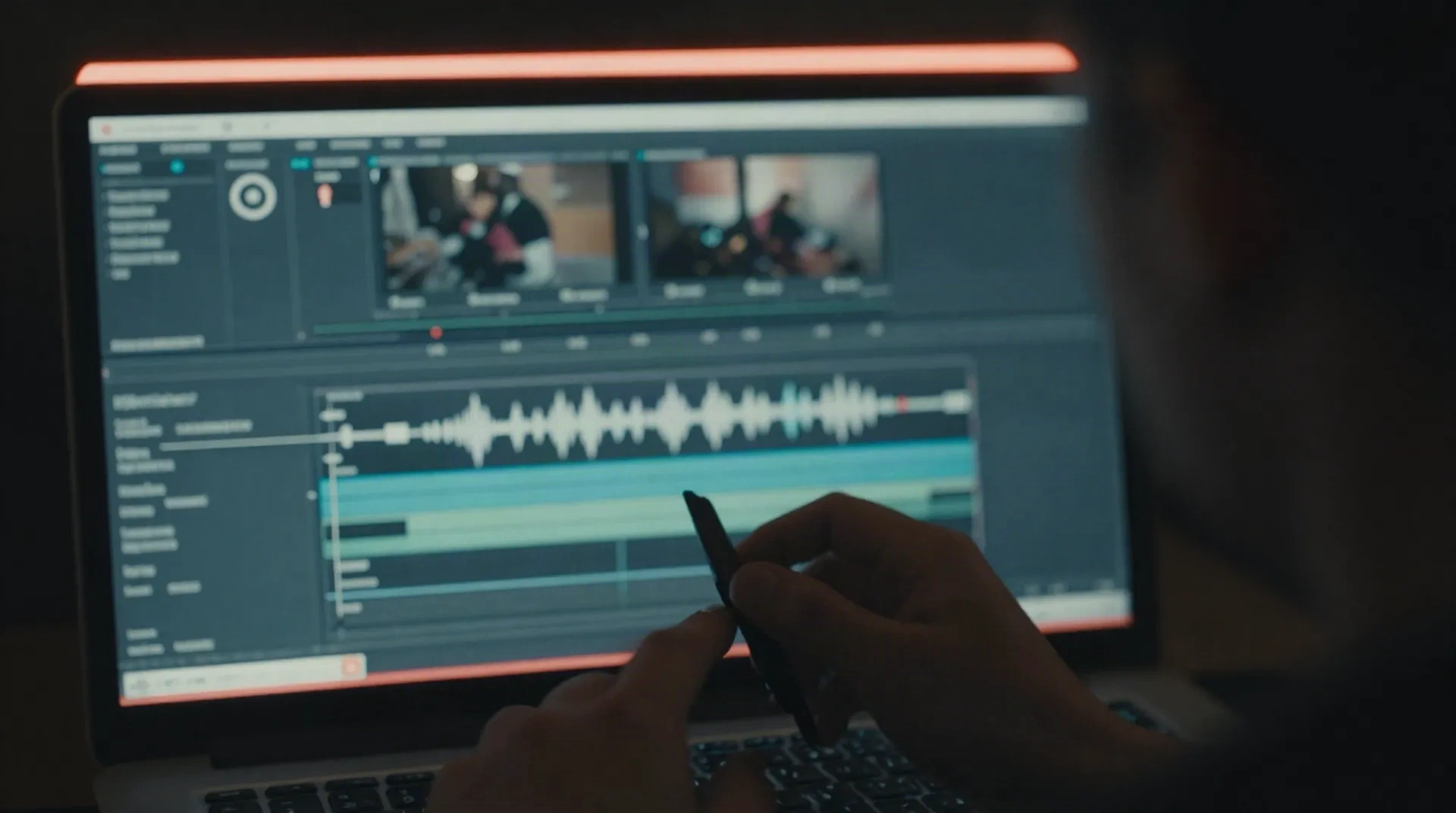
Why trim first, caption second
Trimming and captioning are two separate jobs. Doing them in this order saves you from re-timing captions after a later re-cut.
Cut it anywhere
Your phone's gallery editor, CapCut, or a browser trimmer, any tool that exports a shorter MP4 or MOV file works fine as the first step.
Get the length right first
Trim to the platform you're posting on before you caption. A shorter, tighter clip means shorter, more readable caption lines.
Paste, don't upload
Once your clip is cut, drop its transcript into SubsVideo. No file upload, no account, no render queue to sit and wait on.
Timed to the frame
The AI reads your script's rhythm and places each line on its own beat, not a flat few seconds per sentence regardless of pacing.
Style that matches your clip
Pick a caption look, set the position top, middle, or bottom, and see it on the frame before you export a single file.
Export where it plays
Download standards-compliant SRT or VTT, or copy the styled captions straight into YouTube, Premiere, CapCut, or your player.
From long recording to posted clip
Four steps. Most of them are free and finished before you ever open SubsVideo.
-
1
Trim the clip
Cut your recording down with your phone's editor, CapCut, or any free browser trimmer, then export the shorter file.
-
2
Copy the transcript
Pull the script from your recording software, or write out what's said in the trimmed segment.
-
3
Paste it into SubsVideo
Drop the transcript in, pick a caption style, and watch the AI time each line to the audio's rhythm.
-
4
Export and post
Download SRT or VTT, or copy the styled captions straight into your editor before you publish.
A 40-minute webinar becomes a 90-second clip
A course creator pulls the strongest three minutes out of a live session and trims it down with a free browser tool. She pastes the trimmed segment's script into SubsVideo, and the captions land in place before the export finishes, ready for a landing page or a follow-up email.
- Works from any transcript, not just a SubsVideo recording
- No sign-up needed to try a single clip
- Styled captions can match the original brand colors
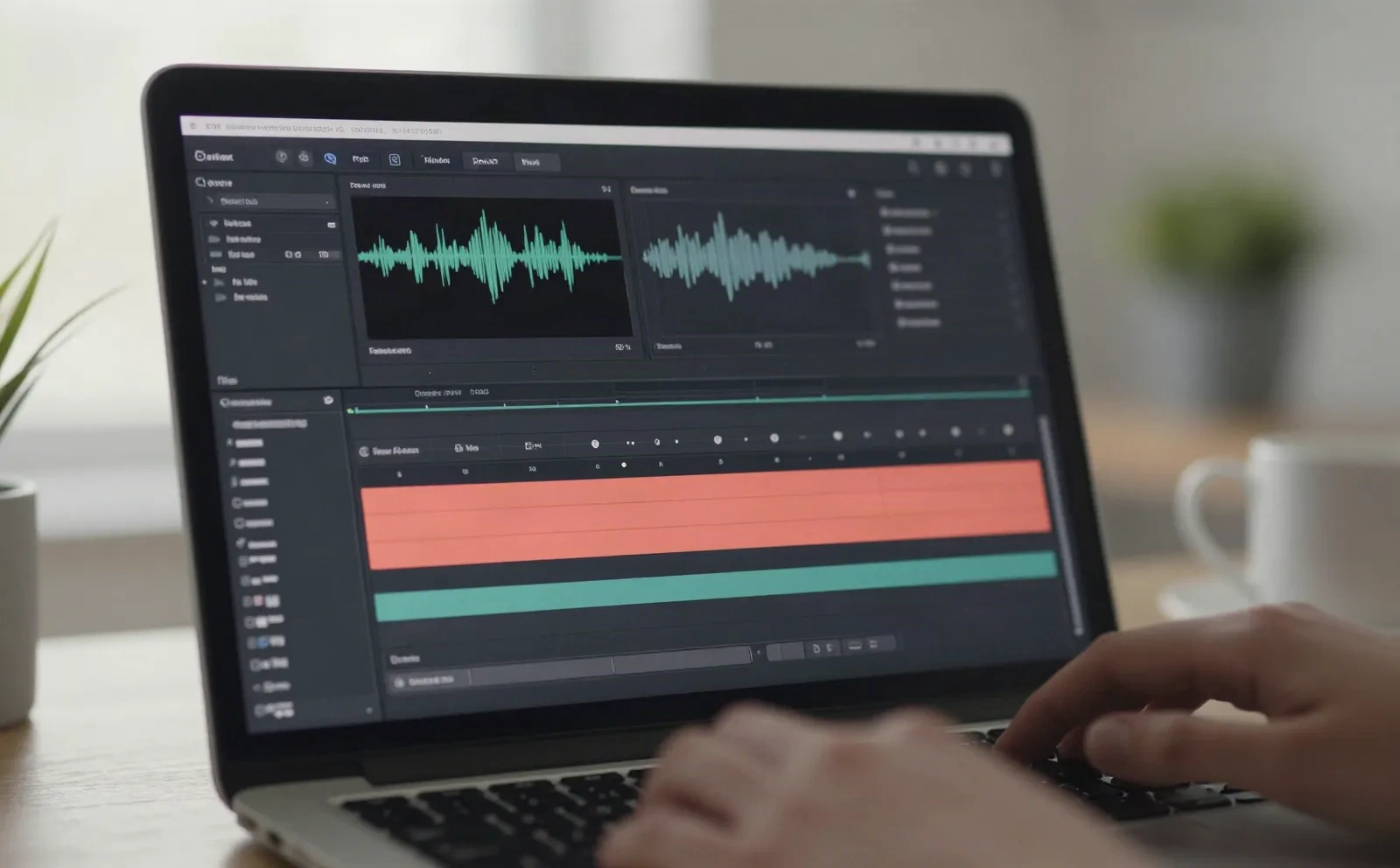
One long interview, five captioned shorts
A creator trims one recording into five short segments with CapCut, then runs each segment's transcript through SubsVideo on its own. Every clip gets its own timed captions in the same coral-accented style, ready for Reels, Shorts, or TikTok.
- Reuse the same caption style across a whole batch of clips
- Captions still read on mute, where most shorts get watched first
- Translate the same script into 13 languages for wider reach
Trimming and captioning, answered
Does SubsVideo trim or cut my video file?
What's the fastest free way to trim a video online?
Do I need to upload my video to SubsVideo?
What file formats does SubsVideo export?
Can I caption a clip that's already been trimmed for TikTok or Reels?
Does trimming a clip change the reading speed of its captions?
Is there a length limit on the transcript I can paste?
Can I translate the captions after I trim and caption a clip?
What if I trim my video after I've already generated captions?
Trim your clip, then caption it free
No sign-up, no upload. Paste the transcript from your trimmed video and get subtitles timed to the word.