An AI Video Editor Built for Captions
Every video editor AI toolkit promises speed. SubsVideo delivers it for the one editing job that actually eats your evening: subtitles.
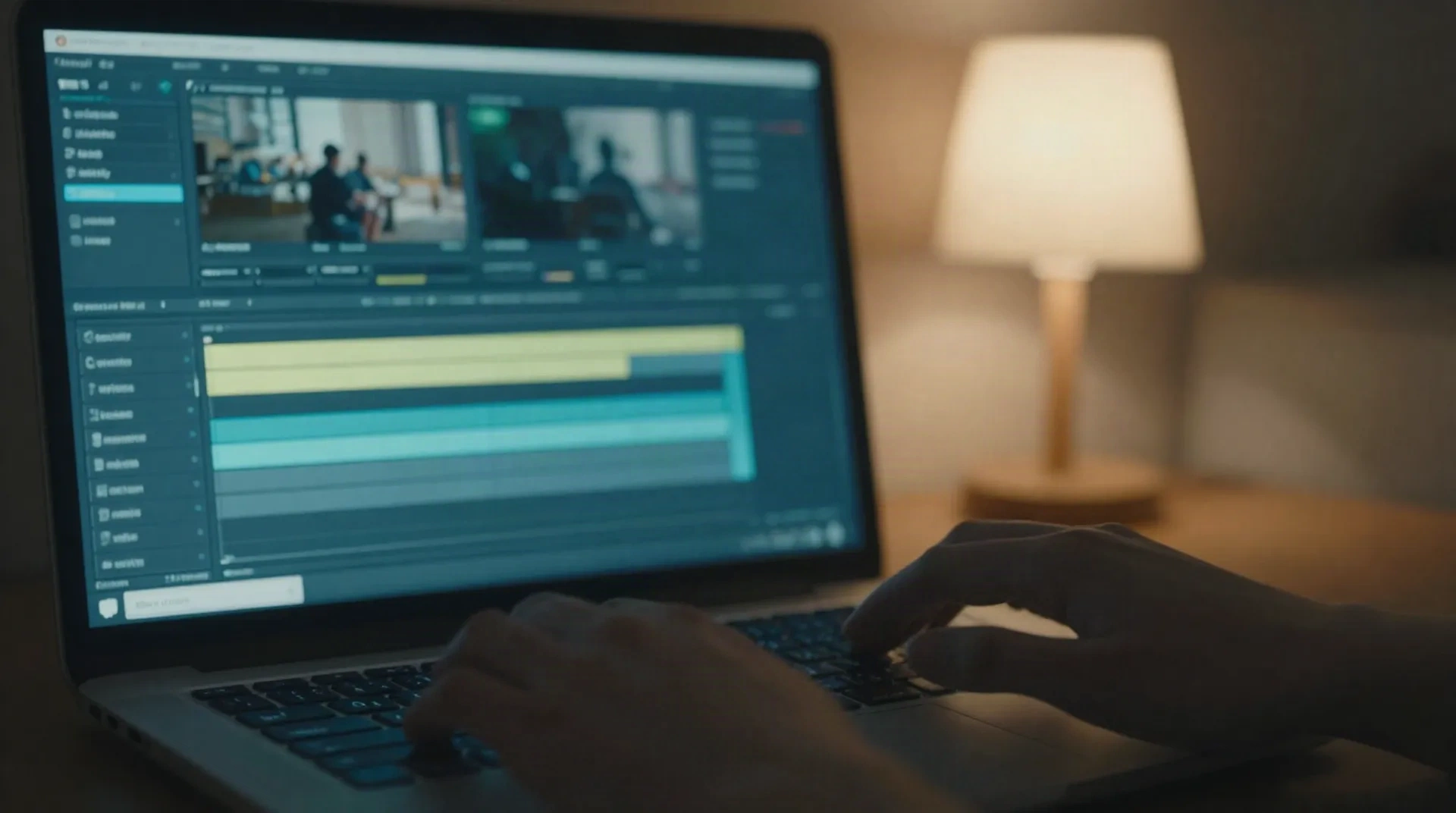
Where a subtitle-first AI video editor wins
Full timelines are for the cut. This is for the part every video editor AI feature list buries on page three.
Paste, don't upload
Drop in a transcript and skip the render queue entirely. No file upload, no account, no waiting on a cloud job to finish.
Timed to the line
The AI reads your script's rhythm and sets each caption's duration to reading speed (cps), not a flat few seconds per sentence.
Breaks that respect the sentence
Line breaks land between ideas, not mid-thought. Two lines max, sized so a viewer finishes reading before the cut.
Style before you export
Pick a caption look and position, top, middle, or bottom, and see it sitting on your actual frame before committing to a file.
Export where it plays
Standards-compliant SRT or VTT, or copy the styled captions straight into CapCut, Premiere, or your player of choice.
Translate without re-timing
Once your captions are timed, carry them into another language without redoing the sync work from scratch.
Where SubsVideo sits in your existing cut
You're probably not replacing your video editor AI stack. You're adding the one step it still makes you do by hand.
-
1
Finish the cut
Trim and arrange your footage in whatever tool you already use, CapCut, Descript, Premiere, or a phone editor.
-
2
Grab the transcript
Export or copy the script from your recording software, or write out what's said in the finished cut.
-
3
Paste it into SubsVideo
No upload, no sign-up. The transcript goes in, timed captions come out in the browser.
-
4
Review the timing
The AI handles most of the line-breaking and pacing. Skim it once for the handful of lines worth adjusting by hand.
-
5
Export and drop it back in
Pull an SRT or VTT into your editor, or copy the styled captions straight into your publishing tool.
Captions built for reading speed, not a stopwatch
Most timelines let you drag a caption box and eyeball the duration. That works until a line flashes for eight-tenths of a second or lingers three beats past its sentence. SubsVideo reads the actual pacing of your script and sets duration by reading speed (cps), the number that decides whether a line gets finished before it disappears.
- Line breaks that land between ideas, not mid-word
- Minimum display duration enforced automatically
- Two-line cap so nothing crowds the frame
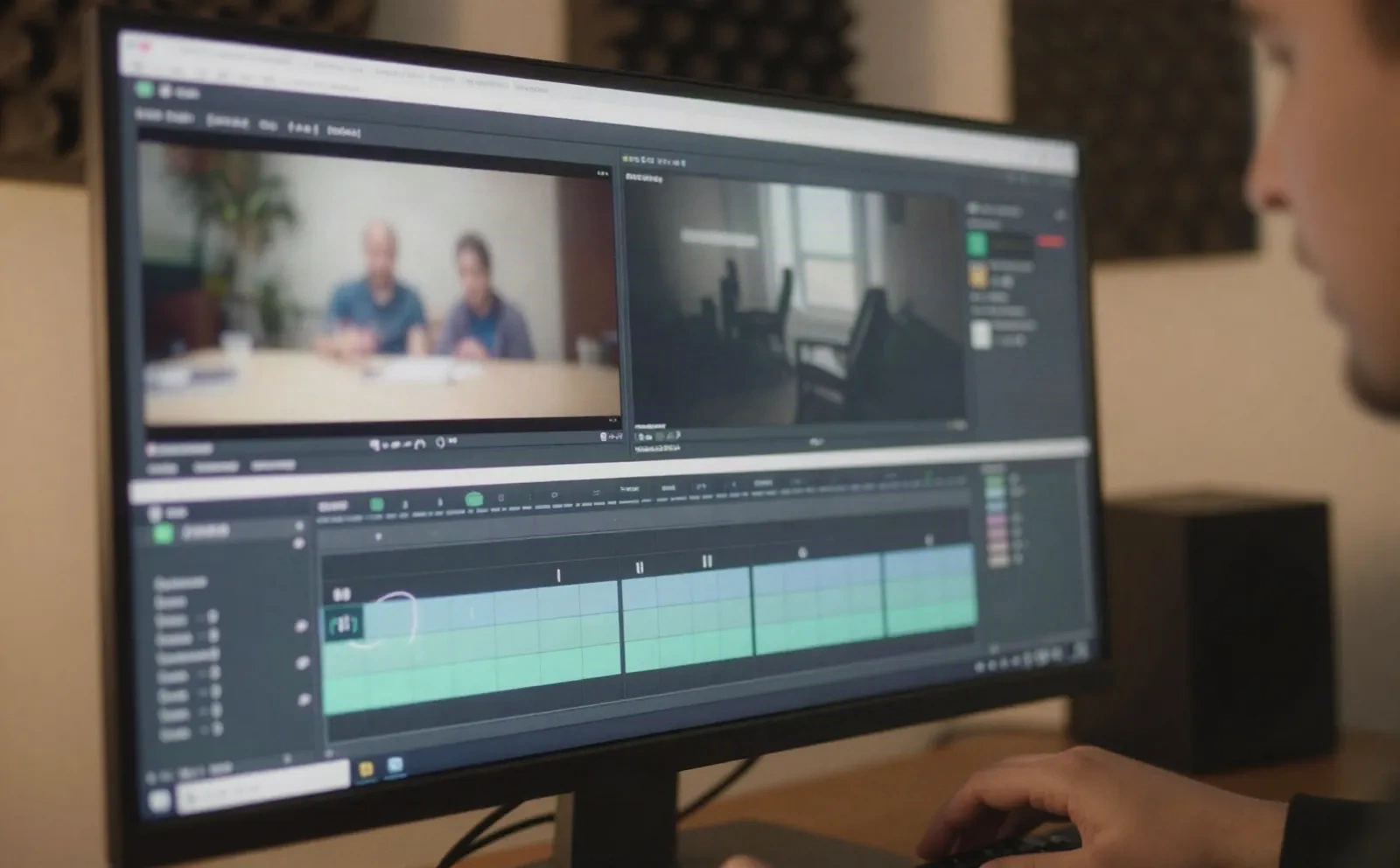
Readable with the sound off, first
A clip that gets cut down for social loses its sound by default. The caption is the only thing carrying the line. SubsVideo styles for that reality: high-contrast text, a size that survives a feed thumbnail, and positioning that clears whatever the platform stacks at the bottom of the frame.
- Presets sized for TikTok, Reels, and Shorts safe zones
- Contrast that holds up over busy footage
- One style applied across a whole batch of clips

Video editor AI, and where SubsVideo fits
Is SubsVideo a full AI video editor, like CapCut or Descript?
Is it free to use?
How accurate are the captions?
What's the learning curve like?
What formats can I export?
Do I still need to review the AI's work?
Can I use this alongside another AI video editor?
Add the Captions Your Editor Skips
Paste a transcript, get timed captions back in seconds. No upload, no account, no render queue to wait on.