How to Create SRT File: 3 Ways, From Notepad to AI
Summary
To create an SRT file, write each subtitle as a numbered block with a start and end time (HH:MM:SS,mmm --> HH:MM:SS,mmm) and the text, separated by a blank line, then save as UTF-8 with the .srt extension. You can type it in Notepad, let AI transcribe and minute your video, or export one from an editor. Keep lines near 42 characters, two lines at most, and check reading speed before you upload.
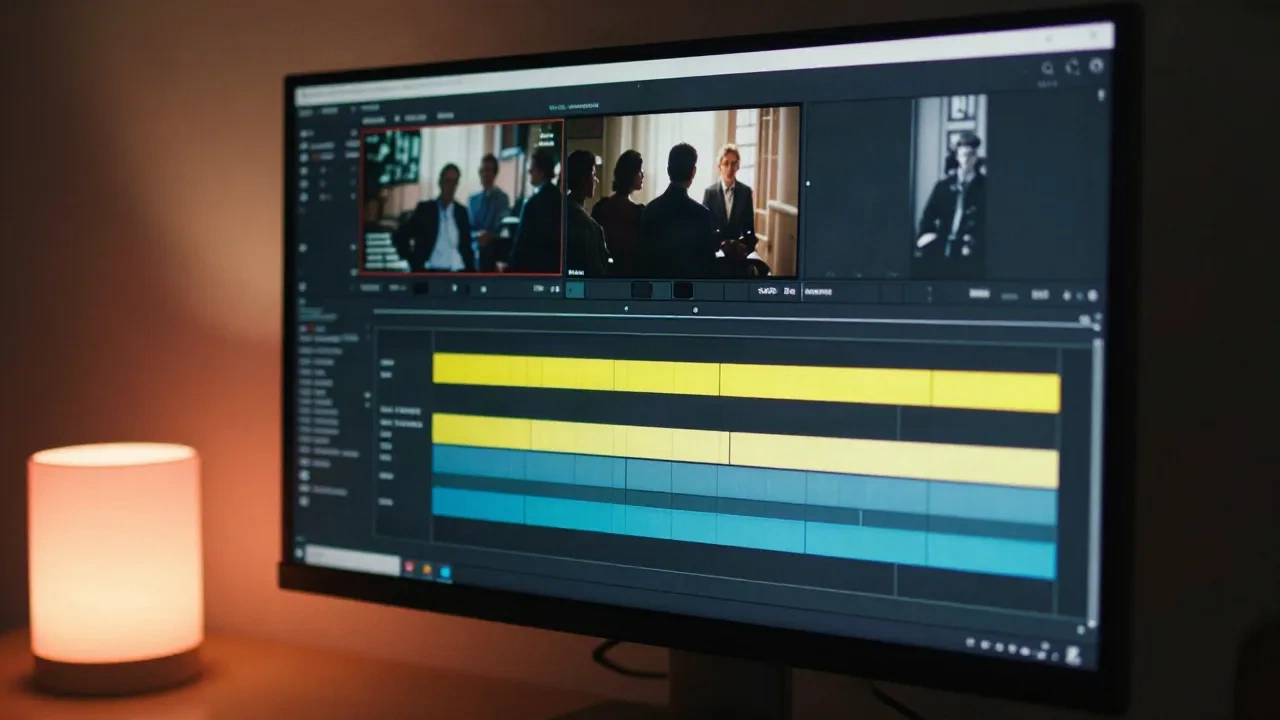
How to create SRT file in one paragraph: you need three things per subtitle: a number, a start and end time, and the text. Write them in a plain text file, separate each block with a blank line, and save it as .srt in UTF-8. That is the whole format. The only real decision is how you get the timing: by hand, with a subtitle editor, or by letting AI listen to the video and minute it for you.
What does an SRT file actually contain?
An SRT file is plain text. No header, no styling, no metadata. Each subtitle is a block of three parts, followed by one empty line.
1
00:00:01,000 --> 00:00:03,500
You can write this in Notepad.

2
00:00:03,800 --> 00:00:07,200
The comma before the milliseconds matters.
Line one is the sequence number, starting at 1. Line two is the start time, an arrow, and the end time, in hours:minutes:seconds,milliseconds. Line three (and four, if you use two lines) is the text on screen. Lokalise's format breakdown shows the same structure.
Three details break more files than anything else. SRT uses a comma before the milliseconds, where VTT uses a period. Every block needs its blank line. And the file must be saved as UTF-8, or accents and non-Latin characters turn into question marks.

Method 1: How do you write an SRT file by hand in Notepad?
Open any plain text editor. Not Word, which adds formatting that players refuse to read. Notepad on Windows and TextEdit in plain-text mode on Mac both work.
Type the first block exactly as in the example above. Then play your video in a separate window, note the second where each line starts and ends, and fill in the timestamps. Save with File, Save As, choose "All files", name it video.srt, and set the encoding to UTF-8.
This is worth doing once, on a 30-second clip, so the format stops being mysterious. After that, skip it. A three-minute video has roughly 60 to 80 subtitle blocks, and typing 80 timestamps by hand is a bad evening. Worth it for a single short clip. Skip it for anything you publish weekly.
Method 2: Can AI create the SRT file for you?
Yes, and for most videos this is the right default. The AI does the two slow parts: it transcribes the speech, then it minutes each line and cuts the text into subtitle-sized pieces. You get a finished .srt back instead of a blank text file.
The workflow is short. Upload the video or paste a link, pick the language, let the transcript run, and review. Then export as SRT. A good studio shows the lines against the video so you can fix a wrong word without touching a timestamp.

The honest limit: the AI gets the minutage right on clean audio, and it still mishears names, brand terms, and anything said over music. Expect to proofread the transcript, not retype it. The realistic split is that the AI does about 95% of the minutage and you fix the remaining lines in a couple of minutes. Test on a real video, not on a paragraph.
Method 3: Which editors export an SRT file you did not write?
If you already edit in a tool with auto-captions, the SRT is one export away. The catch is that each one hides the export in a different place, and some lock it behind a paid plan.
CapCut generates captions on its timeline and can export them as a subtitle file, but check that your version offers it before you plan a workflow around it. Descript builds captions from its transcript and exports SRT or VTT from the publish menu. Kapwing and Veed both generate subtitles in the browser and let you download the SRT separately from the burned-in video, usually on a paid tier for longer files.
When you compare them, ask the same three questions each time. Can I export the SRT without the video? Are the lines cut at sensible places? Does the free plan watermark or cap the length? A tool that fails the first question is a video editor with captions, not a subtitle tool.
What if you already have a transcript or a script?
Then you are halfway there. A transcript has the words but no timing, and a script has the words in the order they were meant to be spoken. Either one saves the slowest part, the typing.
Paste the text into an AI subtitle studio, load the video next to it, and let the tool align each line to the audio. This is the forced-alignment route: the words stay yours, the AI only finds where each one is spoken. It is the best option for scripted videos, courses, and anything where the exact wording matters, like product names or legal text.
Paste a transcript into a spreadsheet or text file only if you plan to time it yourself. Then you are back to Method 1, with a head start on the text.
Can you fix an SRT file you already have?
Often you do not need a new file, you need a better one. A downloaded auto-caption file usually has the right words and the wrong rhythm: lines too long, cues too short, a drift at the end.
Open it in a text editor to fix a typo or a bad comma. For timing problems, a subtitle editor such as Subtitle Edit or the editor inside your AI studio lets you shift every cue by a fixed offset, merge two short cues, or split one long one. That is faster than touching timestamps one by one.
One rule saves hours: fix the cuts first, then the timing. If a long cue is split in the right place, its duration usually fixes itself. If you retime first and split later, you do the work twice.
A last note on tidy files. Renumber the cues after any merge or split, since a player can ignore a block whose sequence number repeats. Most editors do it for you. A hand-edited file does not.
How long should each subtitle stay on screen?
A valid SRT can still read badly. Timing is where files go wrong, and the numbers are not mysterious.
Keep to two lines at most, around 42 characters per line. Netflix's own timed text style guide sets 42 characters per line, two lines, and up to 20 characters per second for adult programs. That last number is the reading speed, or cps. If a 60-character subtitle appears for one second, that is 60 cps and nobody can read it.
A quick check: count the characters, divide by the seconds on screen. Under 17 cps feels comfortable for most viewers. Over 20 and people start missing words. Very short cues also flash too fast, so give even a one-word subtitle roughly a second.
Here is what that looks like in practice. Two lines, calibrated to reading speed:
3
00:00:07,500 --> 00:00:10,500
If the cue flashes too fast,
nobody reads it.
That is 43 characters over three seconds, about 14 cps. Comfortable.
Where should you break the line?
Cut at the end of an idea, not at 42 characters. "I went to the / store yesterday" reads worse than "I went to the store / yesterday", even though the first is shorter on line one.
Rules that hold up on screen: break after punctuation when you can, before a conjunction, and never between an article and its noun or a name and its surname. AI tools that split by grammar do this better than ones that split by character count. If your auto-captions read as a wall of broken phrases, the splitter is the problem, not the transcript.
How do you check that the SRT works before you upload?
Test it before the platform does. Three checks take under two minutes.
First, open the file in a text editor and confirm the numbers run in order with no gaps and the timestamps use commas. Second, load it into a player you trust. VLC accepts a .srt dropped onto the window, and it will show immediately if the sync drifts. Third, if you plan to publish on YouTube, upload the file in the subtitle section of YouTube Studio and check the preview there.
Common failures, and what they mean. Garbled accents mean the file is not UTF-8. A file that loads but shows nothing usually has a missing blank line or a period where a comma should be. Subtitles that start fine and drift later mean the video was re-encoded at a different frame rate, so re-time the whole file by a fixed offset.

SRT or VTT, and when does it matter?
SRT works nearly everywhere: YouTube, Facebook, Vimeo, VLC, most editors. VTT is the web standard for the HTML5 player and supports basic positioning and styling. If you only publish to social platforms and video hosts, SRT is enough.
If you need styled captions burned into the image, SRT is only the source. The burn-in is a separate step in your editor or export tool. Keep the SRT as your master, since you can always turn it into VTT or burn it in later, and you will want it when you translate the video into another language.
What would we actually do?
For one short clip you want to understand: write the SRT by hand once. For everything you publish: let the AI minute it, fix the wrong words, check the cps on the longest lines, and export. Keep the SRT with the project file so the next re-edit does not start from zero.
Your next step is concrete. Take your latest video, generate the SRT, and drop it into VLC before you upload. If the lines read without effort, you are done.